
How to Set Up Video Analytics Rules on Your Alarm.com Doorbell (ADC-VDB775)

Out of the box, a video doorbell records motion — which means cars, cats, tree shadows and every headlight sweep at 2 AM. Video Analytics is the feature that fixes this: the Alarm.com Premium Video Doorbell (ADC-VDB775) can tell the difference between a person, a vehicle and an animal, and only record — and only notify you — for the ones you care about. Here’s how to set it up properly.
The two rule types, in plain English
Analytics rules come in two shapes, and picking the right one matters more than any other setting:
- Ground Zone — draw an area, and the rule fires when a target lingers inside it. Use this for the porch itself: a person standing at your door, a package being delivered.
- Tripwire — draw a line, and the rule fires when a target crosses it. Use this for the walkway or driveway edge: someone approaching the house, a car pulling in.
Zones and tripwires can overlap, and the doorbell supports up to three rules at once — a porch ground zone for people plus a driveway tripwire for vehicles is the classic combination.
Setting up a rule on the website
- Sign in at your Alarm.com portal and click Video
- Click Recording Rules, then Add New Rule, then Video Analytics
- Select your doorbell, choose Ground Zone or Tripwire, and set the scene to Outdoors
- Draw the zone or line on the live view, then choose what should trigger it: Person, Vehicle, and/or Animal
- Save — the first rule kicks off an automatic calibration, so give it a little while to settle in

Setting up a rule in the app
- Open the Alarm.com app and tap the Video icon
- Tap the gear (settings), then Recording Rules
- Tap Add, then Video Analytics, and follow the same steps — camera, rule type, scene, drawing, detection types
The settings that make or break it
- Detection types — for a doorbell, start with Person only. Add Vehicle on a driveway-facing tripwire if you want arrival alerts. Skip Animal unless you actually want raccoon documentaries.
- Timeframes — rules can run at all times, on a custom schedule (say, only overnight), or while on vacation between dates. Most people run the porch rule 24/7 and save schedules for driveway rules.
- Exceptions — the clever part: a rule can pause itself when the panel is disarmed or when your phone’s geo-fence says you’re home, so you’re not notified about your own family walking in. Optional exit delays keep it from firing while you leave.
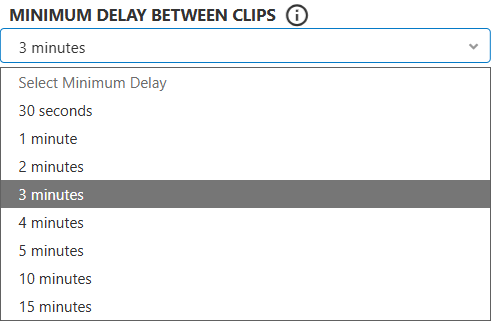
- Minimum delay between clips — the throttle. If your porch is busy, a couple of minutes between recordings saves storage and sanity.

Notifications (and Familiar Faces)
Each rule can push its own notification, filtered by detection type and with an optional thumbnail attached — so the alert itself shows you who’s there. The VDB775 is also one of the few Alarm.com cameras that supports Familiar Face Analytics: teach it household faces and it can tell you whether the person at the door is someone it knows or a stranger. That single filter turns a noisy doorbell into a quiet one.
Going further: deterrence
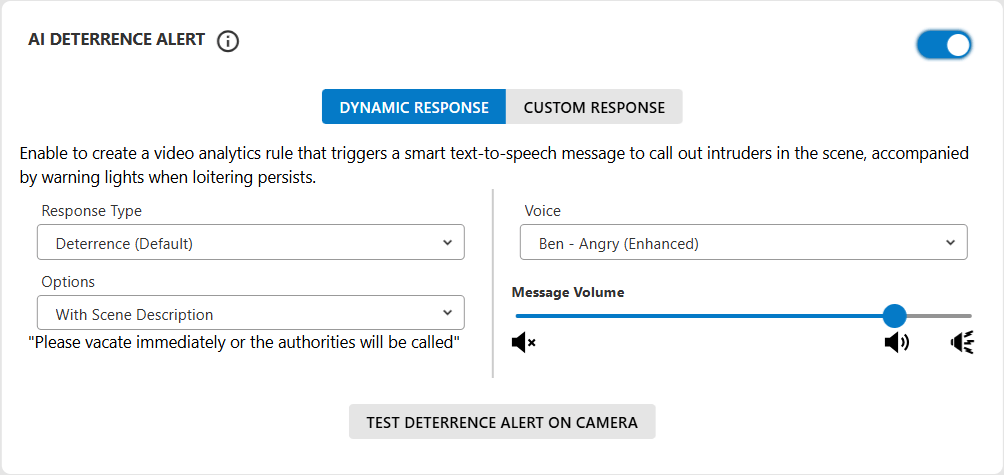
With Perimeter Guard, the doorbell can respond by itself when a rule fires: play a preset or custom message (“You’re on camera”), flash its light in a chosen pattern, or sound an audio alert — each with adjustable volume and duration. One caution from the field: the audio boost option extends range but can distort the message; at doorbell distance, standard volume is almost always the right call. Rules can also trigger connected lights — porch light on for any person after sunset is the setup we install most.
Our recommended starting point
For a typical Utah front door: one Ground Zone over the porch and approach, Person only, running at all times, with thumbnail notifications on and a one-minute clip delay — plus a disarmed-panel exception if you find it too chatty about your own comings and goings. Add a driveway tripwire for vehicles only if you actually act on arrival alerts. You can always tighten from there; start simple.
Interface images from the Alarm.com knowledge base, shown for customer reference.
Stuck, or want it dialed in for you?
If we installed your system, walking you through this is part of the deal — send us a message or call (928) 843-7767, and we’ll often just configure it remotely while you watch.
And if your current alarm company installed the doorbell but won’t help you use it: we take over existing Alarm.com systems across Utah — same equipment, month-to-month, with people who answer. More walkthroughs in our Alarm.com tutorial library.


